Computer is one of the biggest innovations of mankind, and today can be considered as one of the basic necessities of our life. A computer saves time, works faster than humans, never gets tired, and has multiple uses. Let’s learn more about computers.
Parts of a Computer
Different parts of a computer: CPU, Monitor, Mouse, Keyboard, Printer.
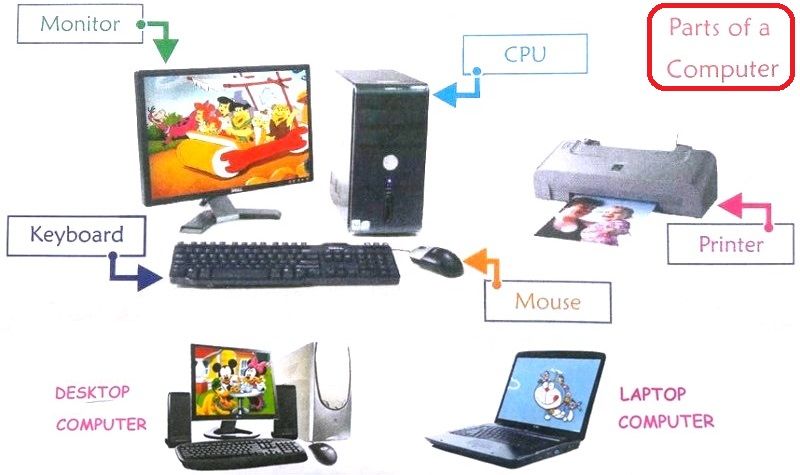
CPU is the most important part of the computer, as it does most of the data processing. CPU is the brain of the computer, it helps a computer to think and work according to given orders/instructions. It consists of one or more processing chips.
Monitor
A monitor looks like a television, it is used to shows information/media on the screen. It shows the work that you’re doing on the computer.
Computer Keyboard
A keyboard has many keys and is used to type letters, words, numbers and special characters.
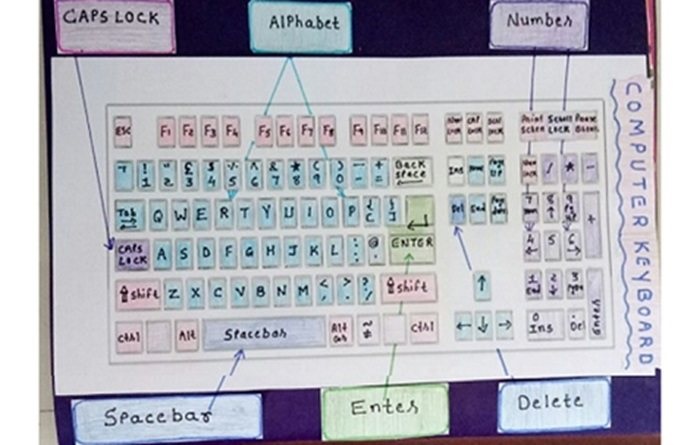
Cursor is a blinking line that shows where you can start typing the text.
Mouse
Mouse helps us to point at things (and select items) on the monitor. It has two buttons. Nowadays you also get wireless mouse.
When you move the mouse, you see a small arrow moving on the monitor. This arrow is called the mouse pointer.
Pressing the mouse button is called clicking, and that action lets you select an item.
Data Storage (Memory)
A computer stores data on the hard disk and on external storage devices such as pen (flash) drives.
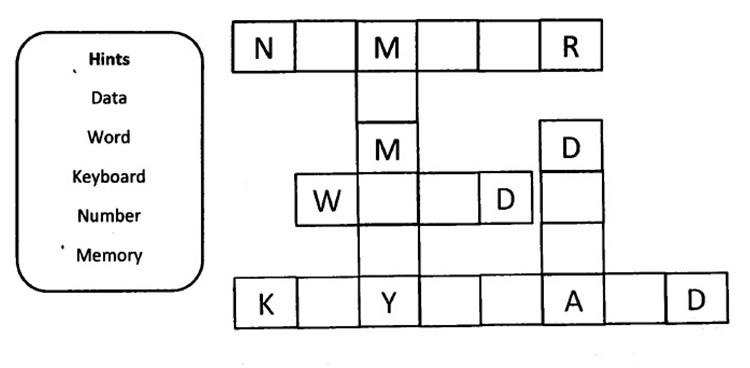
A file is a collection of related information, stored together on some storage device, such as Hard disk or Pen Drive.
Important Hardware of a Computer
Motherboard
This is the main electronic circuit board, known as motherboard. All the computer components connect to this board. The CPU is located on the motherboard.
Random Access Memory (RAM)
It’s called a “memory” because this is the place where the computer stores and retrieves data, as it operates. More computer memory means the computer will be able to run faster and handle more software programs.
This is volatile memory; meaning when the computer is switched off everything stored on this temporary storage device is lost.
Hard-disc drive
RAM is quick but volatile. Hard drive is the place where you store your data and information so that you can retrieve it later. Hard drives are comparatively slower than RAM, when it comes to storing and retrieving data.
Graphics Card
Graphics card is responsible for processing and displaying images and videos on the monitor of your computer. Quality of the graphics card determines the quality of the overall picture/videos. A Graphics Card is also known by other names such as Video Adapter, Graphics Accelerator Card, Display Adapter.
Power supply
A computer runs on electricity, so a power supply unit (PSU) is also one of the computer parts; it regulates the electricity needed by the other components to operate.
Operating System: Basics
Operating System of a computer (and most smart devices) is basically a layer of core programs that act as intermediaries between basic computer hardware and the user to make it easy to interact with the gadget/hardware.
An Operating system manages hardware and software, executes programs, does file and memory management, does scheduling/multitasking of various tasks, and also helps with computer security and networking.
Related: Computer programming basics
What Happens When a Computer Starts?
At the most basic level, a computer takes information input into the CPU, processes it, and outputs information on the monitor.
When you turn on the computer, the system software tells the CPU to start certain programs and some hardware devices so that they are ready for more input from you. This whole process is called booting up (short for bootstrap). The boot process is controlled by the PC’s basic input-output system (BIOS), read more.
How To Build a Computer (Video Tutorial)
Building a computer yourself is actually easier than what most people think. All you have to do is choose your parts, order them, assemble them and install an operating system such as Microsoft Windows. It is easy, costs less, and you can even teach your children how to build one at home.
Here are some easy to follow video tutorials that will show you step-by-step How To Build a Computer.
It will show you how to choose the components, how to put them all together, and finally install the operating system.
Computer Networking Basics
What is an IP Address?
IP (Internet protocol) address is a numeric value that is assigned to any computer that is part of a computer network. Every machine on a network has a unique identifier so that they can communicate with each other correctly (to send/receive data).
Various Layers of TCP/IP
- Physical layer: This layer incudes the actual physical aspect of the network i.e. physical data cables and telephone wires.
- Link layer: Almost all networks use Ethernet. Each machine in a network has its own IP address and its ether address. It tells the network which computer to deliver the datagram to and for this the ether header is used.
- Network Layer: Responsible for transporting the datagram to the destination server. This layer does not do any error checking.
- Transport Layer: Responsible for breaking up the data into smaller datagrams and putting them back to usable data at the destination.
- Application Layer: Includes the actual applications like FTP client, browser and others. This is the visible layer
Router
A wired home connection is one in which you use a Ethernet cable to connect the computers to the network router. However, running Ethernet cables between rooms or floors is messy. A wireless router lets you access the internet wirelessly using the built-in antennae, so as long as you are on the wi-fi or the wireless network, you can get online at high speeds without having to plug-in to the router.
Keep Your Computer, Network and Computing Devices Safe
In general, you must keep your computer safe at two levels:
- Prevent viruses and malware from reaching your computer
- Get rid of them that are already on your computer
You do this by using software programs, and also by using a firewall for enhanced protection.
Computer/ Internet Safety & Ethics for Students
With kids spending more time on their computer and on the internet than ever before, it is important to make them aware of ethics and values.
Ethics’ is about the right things that people should do in any situation.
Ethics to be followed by students during their online lectures:
- Always turn on the video so that the teacher can see the student.
- Use the software feature to inform the teacher that you have a doubt, instead of unmuting and asking.
- Do not chat with others during the online class.
- Do not play games or surf the internet during the online class.
- Do not use the computer to harm other users in any way.
- When the child unmutes the computer (for answering), teach them to let others in the house know that they can be heard by others (so that they do not utter anything personal/bad).
Google and NCERT will soon introduce a course on digital citizenship and safety in the information and communication technology (ICT) curriculum for schools across India.
The aim of the course will be to teach Students on how to be good and responsible digital citizens, by focusing on the social, ethical and legal aspects of internet safety.

Leave a Reply